
From Footage to Final Cut in 10 Minutes: A Loopdesk Workflow Guide
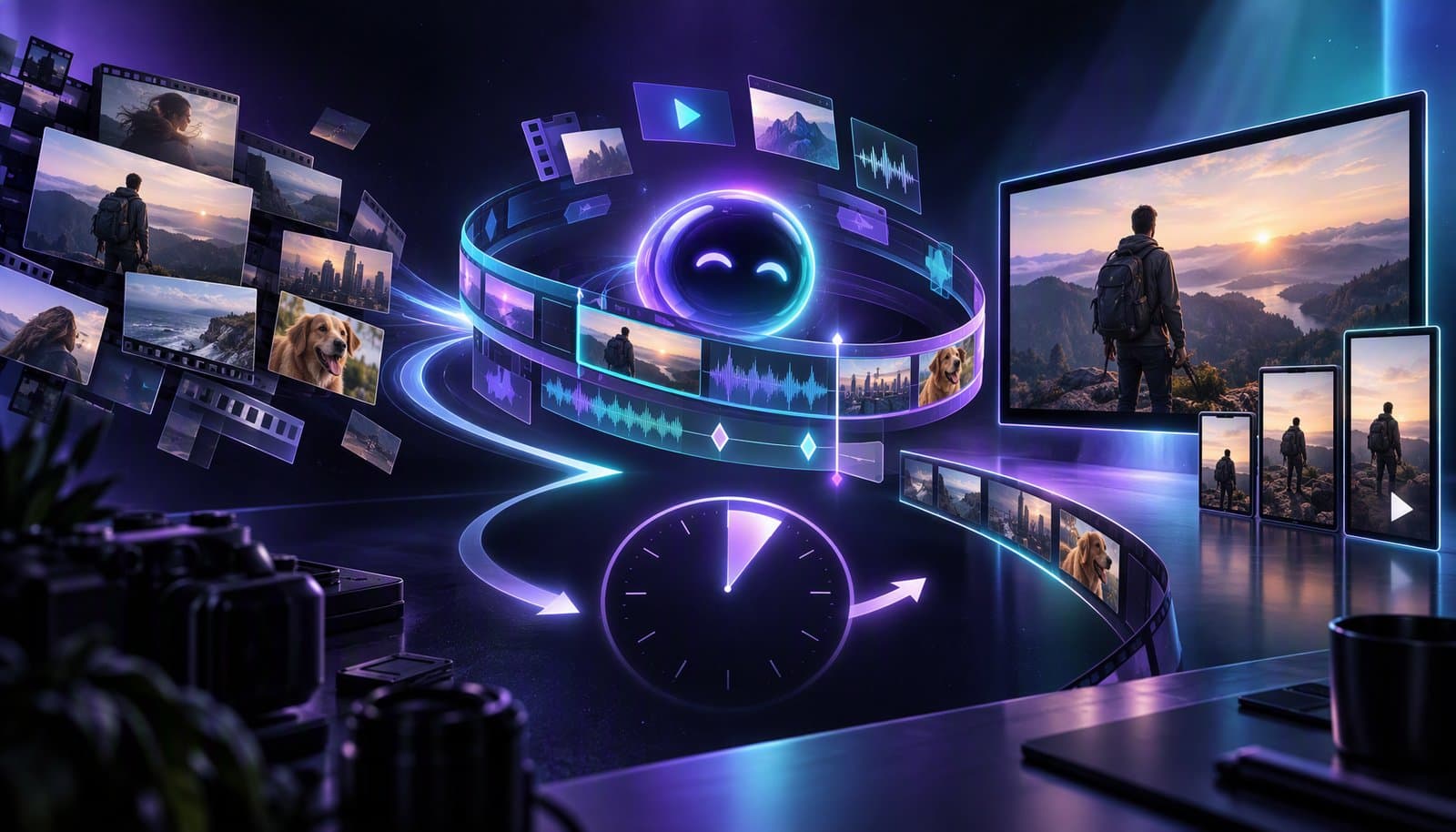
You just finished recording. Maybe it's a 30-minute podcast episode with a guest. Maybe it's a 20-minute talking-head video for your YouTube channel. Maybe it's a 45-minute webinar that your team needs to publish by end of day. The footage is raw, unedited, and sitting on your hard drive.
In the old world, this is where the pain begins — hours of scrubbing, cutting, captioning, and exporting. In the Loopdesk world, you'll have a polished, multi-platform-ready edit in under 10 minutes.
This isn't a theoretical promise. It's a real workflow that real creators use every day. Let's walk through it step by step.
The 10-Minute Workflow: Start to Finish
Minute 0–1: Upload Your Footage
Open Loopdesk in your browser — Chrome, Firefox, Safari, or Edge. No downloads, no installations, no "checking for updates" screens.
Drag and drop your raw video file directly into the editor. Loopdesk supports all major formats:
- Video: MP4, MOV, MKV, AVI
- Audio: WAV, MP3
There's no file conversion step. No "importing media library." No waiting for proxies to generate. Your file uploads directly, and the AI begins analyzing it immediately.
Pro tip: You can start editing while the upload is still processing. Loopdesk streams your media progressively, so there's no waiting for the full upload to complete before the AI kicks in.
Minute 1–3: AI Analysis and Automatic First Cut
This is where Loopdesk's visual understanding engine does its magic. While you grab a coffee, the AI is:
- Detecting speakers: Identifying who's talking at every moment, even in multi-person recordings
- Mapping narrative structure: Understanding where topics change, where the intro ends and the main content begins
- Identifying content type: Recognizing whether this is a podcast, a vlog, a tutorial, or a keynote — and applying the appropriate editing strategy
- Scoring engagement: Analyzing every segment for emotional intensity, quotability, and audience interest potential
- Generating a transcript: Creating a highly accurate text version of everything spoken
Within seconds, your timeline populates with an automatic first cut:
- ✅ Silences trimmed (customizable threshold — default is 0.5 seconds)
- ✅ Filler words removed ("um," "uh," "you know," "like," "basically")
- ✅ Jump cuts smoothed with intelligent transitions
- ✅ Speaker segments labeled and color-coded
- ✅ Chapters auto-generated based on topic changes
What just happened in 2 minutes would take 1–2 hours in Premiere Pro, Final Cut Pro, or DaVinci Resolve. That's not an exaggeration — silence removal alone in a 30-minute video requires scanning the entire timeline manually, identifying every gap, and deleting them one by one. With traditional tools, this single task can consume an entire hour.
Minute 3–5: Refine with Natural Language Prompts
Your first cut is solid, but you want to put your creative stamp on it. This is where Loopdesk's natural language editing transforms the workflow.
Instead of clicking through menus, dragging effects, and adjusting parameters, you simply type what you want:
Captions
"Add captions with bold white text, black semi-transparent background, centered at the bottom. Highlight the current word in yellow."
The AI generates speech-to-text captions in your chosen style, perfectly synced to the audio. Supporting 108 languages, so you can publish for global audiences.
Pacing
"Tighten the pacing — remove any remaining pauses longer than 0.8 seconds and speed up transitions between speakers."
The AI re-scans your timeline and applies more aggressive trimming while maintaining natural speech rhythm.
Intro and Outro
"Cut everything before the first question and add a 2-second fade in. Add a 3-second fade to black at the end."
The AI identifies the exact moment your content begins (skipping small talk, mic checks, and "are we recording?") and trims accordingly.
Speaker Focus
"When the guest is speaking, make sure they're the primary focus. When I'm speaking, center my camera."
For multi-camera or multi-speaker recordings, the AI automatically switches focus based on who's talking.
Each prompt executes in seconds. No timeline scrubbing. No parameter tweaking. No effect hunting. Just describe what you want, and it happens.
Minute 5–7: Generate Short-Form Clips
Your full-length edit is polished. Now it's time to multiply your content. Type:
"Find the 5 most engaging moments and create vertical clips for YouTube Shorts and TikTok with captions."
Loopdesk's AI:
- Identifies the best moments based on emotional intensity, quotability, and narrative completeness
- Extracts each clip with intelligent start and end points (not mid-sentence cuts)
- Reformats to 9:16 vertical with smart speaker-aware cropping
- Adds captions matching the style you defined earlier
- Labels each clip with a suggested title based on its content
Five polished, captioned, vertically formatted short-form clips — created in about 90 seconds.
Doing this manually in a traditional editor would take 2–3 hours. Finding the right moments alone requires watching the entire recording, and reformatting each clip for vertical takes 15–20 minutes per clip.
Minute 7–9: Review and Polish
Take a couple of minutes to review your full-length edit and short-form clips. Play through key sections. Check that captions are accurate. Verify that highlight clips have strong openings and clean endings.
If anything needs adjustment, describe it conversationally:
- "The third clip starts too abruptly — add half a second of lead-in"
- "Make the captions on the highlight clips slightly larger"
- "The color looks a bit cool — warm it up slightly"
Each adjustment takes seconds. The AI applies your changes and you see the result immediately.
Minute 9–10: Export Everything
Click the export button. Select your targets:
- Full episode for YouTube: 4K resolution, 16:9 landscape, optimized bitrate
- 5 clips for YouTube Shorts: 9:16 vertical, up to 60 seconds each
- 5 clips for TikTok: 9:16 vertical, TikTok-optimized encoding
- 5 clips for Instagram Reels: 9:16 vertical, Instagram-compatible format
- 1 square clip for LinkedIn: 1:1 format for feed posts
One click. All formats. All platforms. No watermark, on every plan.
Total time from footage to fully edited, multi-platform content: under 10 minutes.
The Math That Changes Everything
Let's put this in perspective:
| Task | Traditional Editor | Loopdesk |
|---|---|---|
| Import and setup | 10–15 min | 1 min |
| Silence/filler removal | 45–90 min | Automatic (seconds) |
| Caption generation + styling | 30–60 min | 1 prompt (seconds) |
| Pacing and refinement | 30–60 min | 2–3 prompts (minutes) |
| Create 5 highlight clips | 2–3 hours | 1 prompt (90 seconds) |
| Reformat for vertical | 20–40 min per clip | Automatic |
| Export all versions | 15–20 min | 1 click |
| Total | 5–8 hours | Under 10 minutes |
That's a 30–50x speed improvement. For a weekly creator, that's 5–8 hours of editing time returned to your life every single week. Over a year, that's 250–400 hours — the equivalent of 6–10 full work weeks.
What You Can Do with All That Saved Time
The real value isn't just speed — it's what speed enables:
Ship More Content
Instead of editing one video per week, edit three. Or five. More content means more algorithmic surface area, more audience touchpoints, and more growth.
Focus on What Matters
Spend your reclaimed hours on content strategy, audience engagement, sponsorship outreach, or simply resting. The editing grind shouldn't be the bottleneck in your creator business.
Improve Quality
Paradoxically, faster editing often means better quality. When editing takes 8 hours, you're exhausted and cutting corners by hour 6. When it takes 10 minutes, you have the energy and motivation to polish every detail.
Scale Your Operations
If you're an agency or team, 10-minute edits mean you can handle 10x more client projects without 10x more staff. That's a fundamentally different business model.
Why This Workflow Only Works with Agentic AI
Other tools promise speed. Template-based editors like CapCut can be fast for simple social content. Clip-extraction tools can find highlights quickly. Basic AI caption tools save time on subtitles.
But none of them deliver the complete workflow — from footage to fully polished, multi-platform content — in a single, unified experience. That requires agentic AI that:
- Understands your content at a deep level (not just audio peaks, but narrative structure, speaker dynamics, and emotional arcs)
- Executes multi-step editing pipelines autonomously (not just individual features, but complete workflows)
- Responds to natural language creative direction (not menus and sliders, but plain English instructions)
- Delivers platform-ready output (not raw exports that need further processing, but finished content for every platform)
This is what makes Loopdesk the Cursor for video editing. Just as Cursor transformed software development by replacing manual code manipulation with AI-driven development, Loopdesk transforms video production by replacing manual timeline editing with AI-driven post-production.
Try It Yourself
The best way to understand the 10-minute workflow is to experience it. Here's how to get started:
- Go to app.loopdesk.ai/home
- Upload any video or audio file — a recent podcast recording, a talking-head video, a webinar capture
- Watch the AI analyze your content and generate an automatic first cut
- Type a few prompts to refine the edit, add captions, and create highlight clips
- Export for every platform in one click
Creator Lite starts at $15/month billed annually and includes monthly AI credits, AI captions, unlimited 4K exports, unlimited projects, 25GB cloud storage, and no watermark. That's enough to edit your regular uploads and see the difference for yourself.
You've already created the content. Now let AI handle the edit.
Ready to go from footage to final cut in 10 minutes? Start editing with Loopdesk — browser-based and no editing experience required.